Gabii can record and transcribe Zoom meetings to help you with a variety of tasks, including improving the accuracy of your meeting minutes. Note: Configuration of Gabii is restricted to Govenda Admin Users and above.
Installation/Uninstallation
Govenda's Zoom functionality does not require users to install an app from the Zoom Marketplace, so no installation/uninstallation is required on users behalf.
Setup During Meeting Creation
Step 1
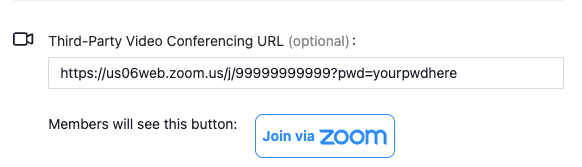
When creating your Govenda meeting, put the Zoom link that Gabii should use in the box labeled "Third-Party Video Conferencing URL"
Step 2
Toggle the "Invite Gabii" option to "Yes" and save your meeting.
Step 3
Govenda Admin Users can confirm any invitations by viewing the Media tab for that specific meeting.
Recording On Demand
You may also have Gabii join a meeting already in progress at anytime. Do do this, navigate to the Media tab.
- Select the "Invite Now" checkbox and the "Agree to Recording Terms" checkbox.
- Add your Zoom Meeting URL
- Click "Invite Now". Gabii will attempt to join your meeting immediately.
Recording Your Meeting
Gabii will automatically join your meeting at the scheduled time. Zoom will notify you that Gabii is requesting to record the meeting. When appropriate, click "Allow Recording" to begin recording.
While recording, Gabii's in-meeting video feed will display recording status. The image below indicates that Gabii has permission to record and is actively recording the meeting.
Reviewing Your Recordings
Once the recording has finished processing, the media tab will display your recording. You can control playback as well as review the transcript of the meeting on the media tab.
Deleting Your Recordings
Your may delete the recording from Govenda at any time by selecting the checkbox and using the Delete button from the bulk actions toolbar. Recordings are not saved by Zoom and therefore do not need to be deleted from Zoom.

Comments
0 comments
Please sign in to leave a comment.